Developing with Electron!
Now that the Electron development environment is set up, let’s build a simple desktop app to test it!
The app I will build while studying Electron is a file-sharing app.
I switch between Linux and Windows when developing, so I needed a simple file-sharing system between different operating systems.
So I decided to build one this time!
First, let’s copy main from electron-quick-start as it is!
function createWindow () {
  // Create the browser window.
  mainWindow = new BrowserWindow({width: 800, height: 600, icon: path.join(__dirname, 'app/img/icon.png')});

  // and load the index.html of the app.
  mainWindow.loadURL(url.format({
    pathname: path.join(__dirname, 'app/upload.html'),
    protocol: 'file:',
    slashes: true
  }));

  // Open the DevTools.
  // mainWindow.webContents.openDevTools()

  // Emitted when the window is closed.
  mainWindow.on('closed', function () {
    // Dereference the window object, usually you would store windows
    // in an array if your app supports multi windows, this is the time
    // when you should delete the corresponding element.
    mainWindow = null;
  });
  const menu = electron.Menu.buildFromTemplate(template);
  mainWindow.setResizable(false);
  mainWindow.setMenu(menu);
}
Resizing is not needed, so I set it to false and made a suitable icon and set its path.
Only 2 menus, upload and download, are needed, so I wrote them as below and declared them before createWindow.
const template = [
  {
    label: 'Upload',
    click () {
      mainWindow.loadURL(url.format({
      pathname: path.join(__dirname, 'app/upload.html'),
      protocol: 'file:',
      slashes: true
      }));
    }
  },
  {
    label: 'Downlaod',
    click () {
      mainWindow.loadURL(url.format({
      pathname: path.join(__dirname, 'app/download.html'),
      protocol: 'file:',
      slashes: true
      }));
    }
  }
];
One question came up here: is it the right approach to handle page switching in the main process through the menu like this?
The basic documentation has no suitable example and it works properly for now, so I’ll pass on it!
Next, let’s write the upload page….
<!DOCTYPE html>
<html>
  <head>
    <meta charset="UTF-8">
    <link rel="stylesheet" href="index.css">
    <title>Dropbox</title>
  </head>
  <body>
    <div id="dropbox" draggable="true">
      <div><h2>Drop your file</h2></div>
      <progress></progress>
    </div>

    <script>
      // You can also require other files to run in this process
      require('./upload.js')
    </script>
  </body>
</html>
Now let’s write the js part that sends the uploaded data!
dropbox.ondrop = function (e) {
    e.preventDefault();
    let data = e.dataTransfer;
    let file = new FormData();
    flag=false;
    for (let i = 0; i < data.files.length; i++) {
        file.append('file', data.files[i]);
        if(i==data.files.length-1) flag=true;
    }
    if(flag)
    $.ajax({
        url: 'http://sodeok.xyz:8002/upload',
        type: 'POST',
        data: file,
        cache: false,
        contentType: false,
        processData: false,
        xhr: function() {
            var myXhr = $.ajaxSettings.xhr();
            if (myXhr.upload) {
                myXhr.upload.addEventListener('progress', function(e) {
                    if (e.lengthComputable) {
                        $('progress').attr({
                            value: e.loaded,
                            max: e.total
                        });
                    }
                } , false);
            }
            return myXhr;
        },
        success:function(data){
            if(data=="ok")
            $('progress').attr({
                value: 0,
                max: 0
            });
        }
    });
};
For each file that comes in through drag and drop, I put it into FormData and send it to the server!
Now let’s write a page where the files sent this way can be downloaded!
<!DOCTYPE html>
<html>
    <head>
        <meta charset="UTF-8">
        <link rel="stylesheet" href="index.css">
        <title>Dropbox</title>
    </head>
    <body>
        <div id="dropboxDownload">
        </div>
        <script>
            // You can also require other files to run in this process
            require('./download.js')
        </script>
    </body>
</html>
Now let’s write a script that fetches the download list and displays it.
window.$ = window.jQuery = require('jquery');
$(document).ready(function(){
    $.ajax({
        url: 'http://sodeok.xyz:8002/list',
        type: 'POST',
        success:function(data){
            if(data!="[]"){
                let json=JSON.parse(data);
                for(let i=0;i<Object.keys(json).length;i++){
                    let list="<a href='http://sodeok.xyz:8002/download/"+String(json[i]["code"])+"'><div class='file'><img src='img/file.png' /><span>"+ String(json[i]["filename"]) + "</span></div></a>";
                    $("#dropboxDownload").append(list);
                }
            }
            else $("#dropboxDownload").html("<h2>공유 파일이 존재하지 않습니다!</h2>");
        }
    });
});
I made it receive only the download code from the server, so that connecting to the download/+code url downloads the file.
So when appending to dropboxDownload, it also just connects with an a tag.
To avoid a bare, text-only look, I also insert a file image.
The server also distinguishes extensions when saving, so showing a different image for each extension would be cleaner. But it’s a hassle right now, so I’ll skip it!
After writing all the code, I ran the program with npm start.
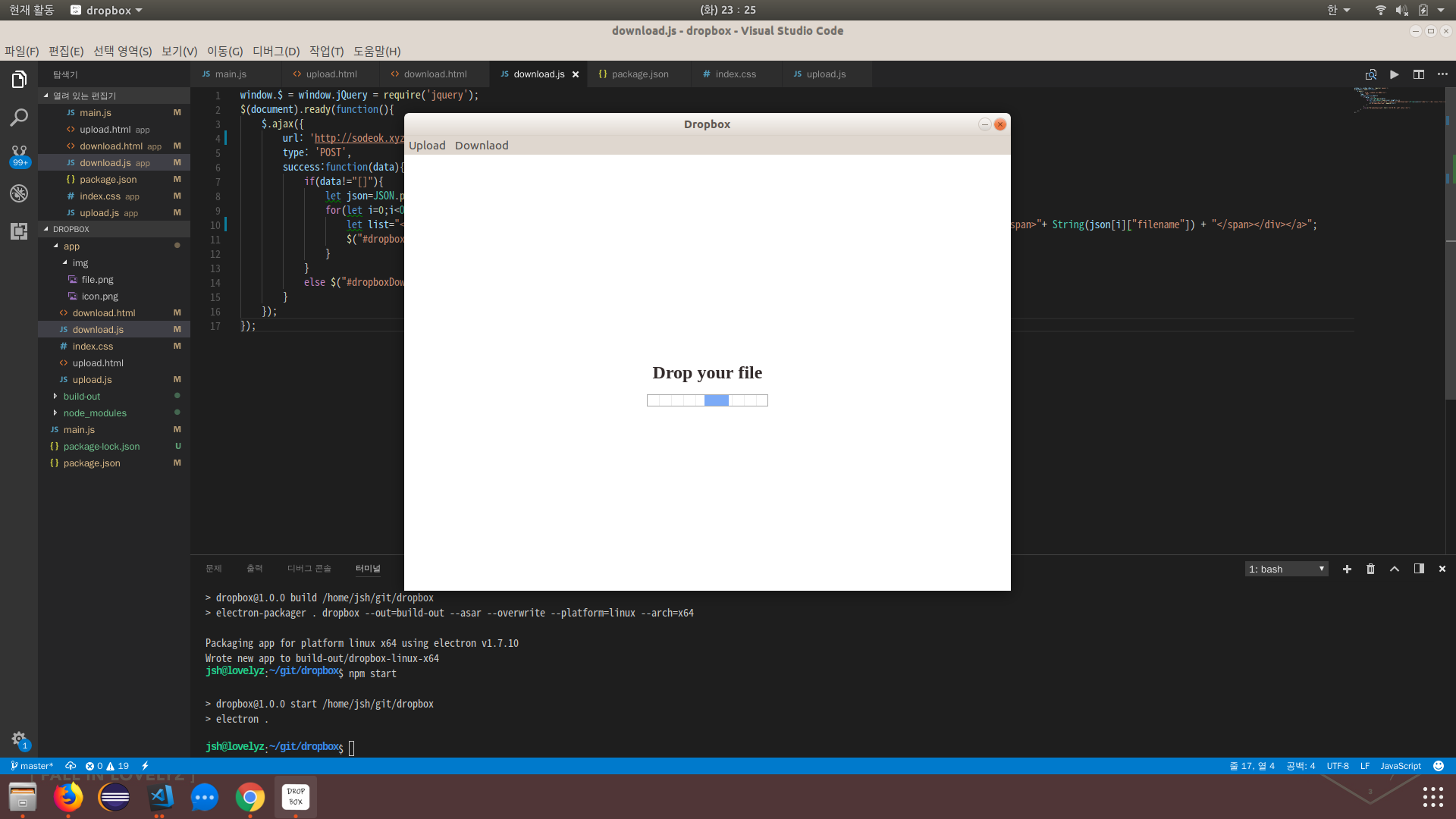
Upload screen
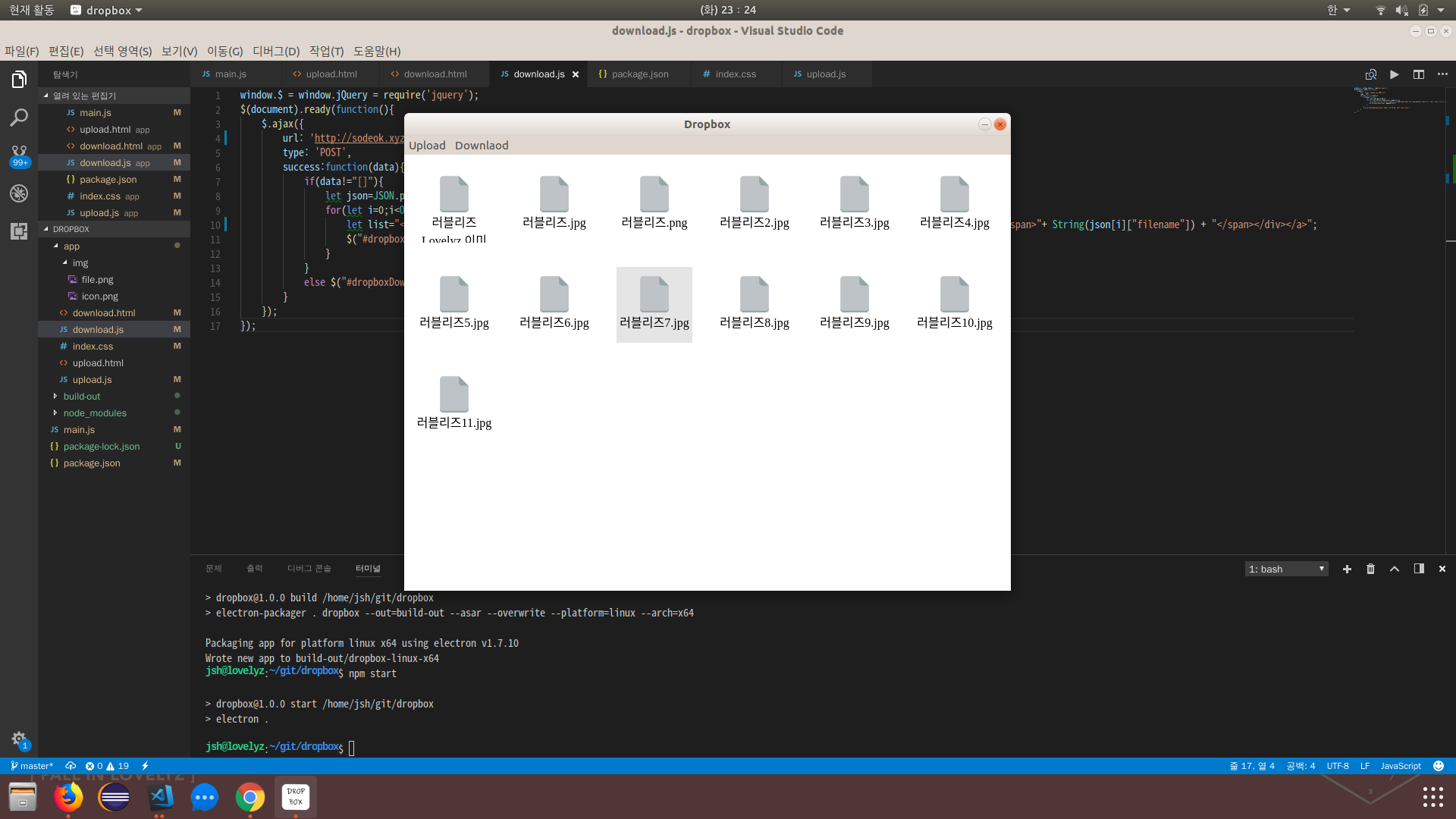
Download screen
The app runs well! It is rather crude, but I made it simple and true to the basics.
Above all, it is amazing that a desktop app like this can be built with web languages.
Finally, I should try deploying it.
For deployment, I used electron-packager, a third-party tool.
$ npm install --save-dev electron-packagerNow let’s add a script to package.json!
"build": "electron-packager . dropbox --out=build-out --asar --overwrite --platform=linux --arch=x64"The –out option sets the folder to deploy to, and the –asar option packs the code into asar on deployment so that it is not exposed. (Electron reportedly can read the asar format without unpacking it.)
The –platform=linux –arch=x64 options are the platform and the architecture bits, respectively.
I use 64-bit Ubuntu, so I set Linux and the x64 architecture.
For the platform, it is darwin for Mac, win32 for Windows, and linux for Linux.
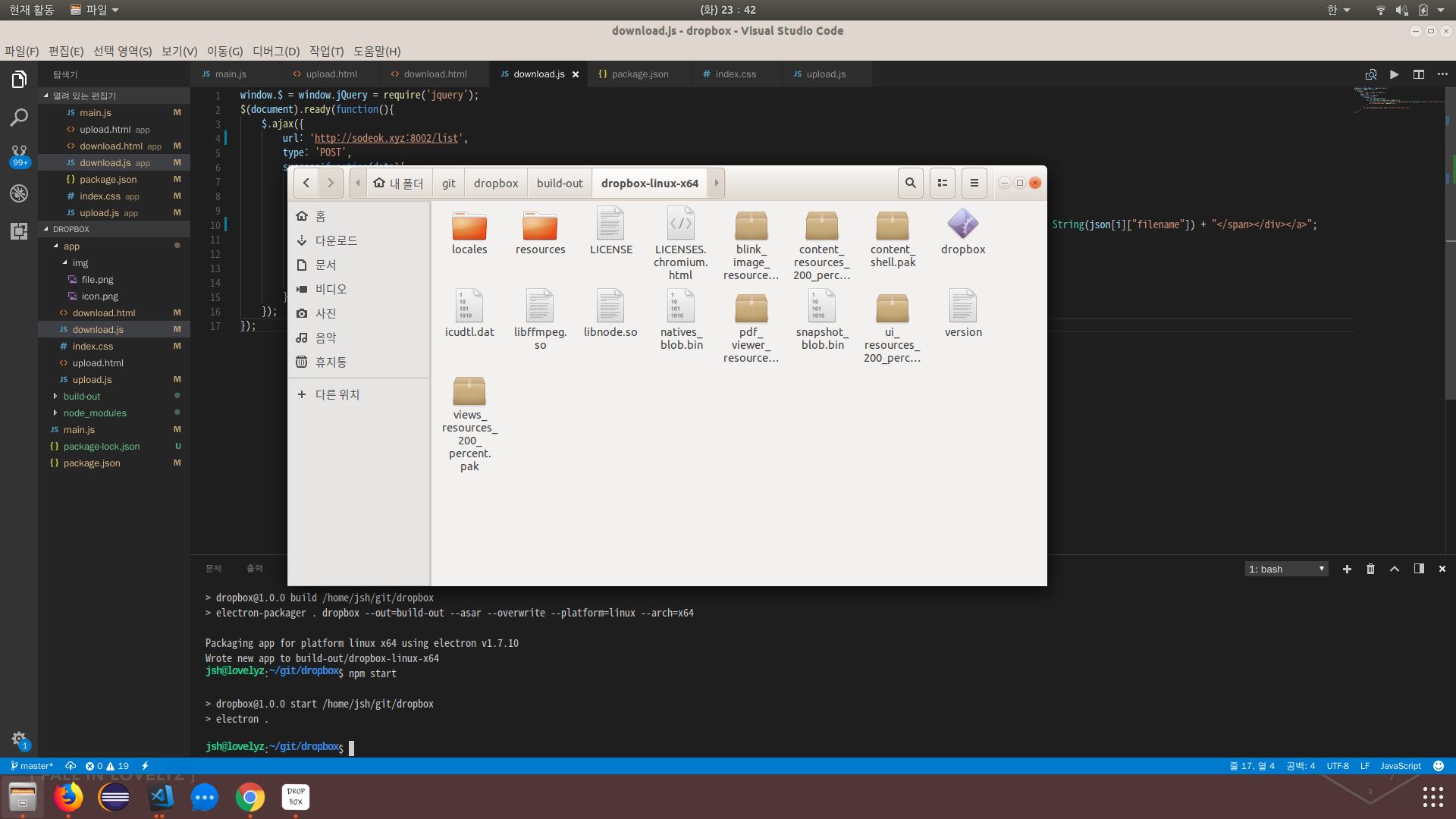
When I ran npm run build, dropbox-linux-x64 was created under build-out, and when I looked inside, the deployment had worked well!
Next, I should also build an exe file and install it on Windows.