Building an ELK Log Server
In the service I currently operate, important logs are written separately to the DB, but all other logs (nginx, worker, talk, etc.) are managed only through syslog.
The logs grew to tens of GB per day, so analysis took a long time. (I am actually still using GoAccess!)
As the logs keep growing, I built a separate log server stack to store and manage them.
I decided to build the server with the ELK stack, which is the most popular and has plenty of references.

For nginx logs, I planned to store them on a dedicated server through rsyslog (on the advice of a senior developer, who said it is needed for attaching directly to the server and running tail and grep!) and then send them to logstash. All other logs would go to logstash directly through filebeat. Logstash would then load the parsed format into elasticsearch.
First, I checked the latest compatible version on the official website.
https://www.elastic.co/kr/support/matrix
The current server uses CentOS 7, so I installed version 7.9, the latest as of the day I did the build!

First, add the es PGP key to rpm.
# Import the Elasticsearch PGP Key
$ rpm --import https://artifacts.elastic.co/GPG-KEY-elasticsearch
Then create the repo information…
# vim /etc/yum.repos.d/elasticsearch.repo
[elasticsearch]
name=Elasticsearch repository for 7.x packages
baseurl=https://artifacts.elastic.co/packages/7.x/yum
gpgcheck=1
gpgkey=https://artifacts.elastic.co/GPG-KEY-elasticsearch
enabled=0
autorefresh=1
type=rpm-md
Install es!
# install elasticsearch
$ yum install --enablerepo=elasticsearch elasticsearch
If the installation went well, configure the settings file in etc to fit your environment.
$ vim /etc/elasticsearch/elasticsearch.ymlBe sure to include the security-related options in the settings!
# generate p12
$ bin/elasticsearch-certutil cert -out config/elastic-certificates.p12 -pass ""
Create the p12 certificate and enable the security options in the settings file as shown below!

The certificate is needed for TLS communication with other es nodes!
Once the certificate is set up, generate the ID and password as well.
# generate id / passwrod
$ bin/elasticsearch-setup-passwords auto
It asks whether to generate them automatically or enter them manually, and I chose automatic generation because I was lazy! (It makes nice long ones for you!)
Keep the ID and password generated this way in a safe place.
Now start elasticsearch.
# start elasticsearch
$ systemctl start elasticsearch
If it starts well, let’s install logstash next.
I installed logstash as version 7.9 as well.

Likewise, add the es PGP key to rpm!
# Import the Elasticsearch PGP Key
$ rpm --import https://artifacts.elastic.co/GPG-KEY-elasticsearch
Create the repo information right away.
# vim /etc/yum.repos.d/logstash.repo
[logstash-7.x]
name=Elastic repository for 7.x packages
baseurl=https://artifacts.elastic.co/packages/7.x/yum
gpgcheck=1
gpgkey=https://artifacts.elastic.co/GPG-KEY-elasticsearch
enabled=1
autorefresh=1
type=rpm-md
Then install logstash!
# install logstash
$ yum install logstash
After installing, configure it in the same way.
$ vim /etc/logstash/logstash.ymlIt is a good idea to adjust the pipeline performance options appropriately.

Now start it to check that the installation went well.
# start logstash
$ systemctl start logstash
If it installed well, install kibana next.
I installed kibana as version 7.9 as well.

First add the PGP key,
# Import the Elasticsearch PGP Key
$ rpm --import https://artifacts.elastic.co/GPG-KEY-elasticsearch
and create the repo information.
# vim /etc/yum.repos.d/kibana.repo
[kibana-7.x]
name=Kibana repository for 7.x packages
baseurl=https://artifacts.elastic.co/packages/7.x/yum
gpgcheck=1
gpgkey=https://artifacts.elastic.co/GPG-KEY-elasticsearch
enabled=1
autorefresh=1
type=rpm-md
Save it and install kibana!
# install kibana
$ yum install kibana
Once it is installed, edit the settings file.
$ vim /etc/kibana/kibana.ymlHere, set server.port, server.host, and elasticsearch.hosts to fit your environment.
Then enter the ID and password you created earlier in elasticsearch into elasticsearch.username and elasticsearch.password.
I used kibana_system.
In addition, if you have an SSL certificate, enable server.ssl.enabled and enter the paths of the certificate and key.
When all the settings are done, start kibana and check that it was installed correctly.
# start kibana
$ systemctl start kibana
If you now connect to kibana, a login screen appears as shown below.
Log in with the account you created in elasticsearch.

The remaining work is to install filebeat, which sends the logs, and to write the logstash pipeline.
First, install filebeat.
I installed filebeat as version 7.9 as well.

Likewise, add the PGP key first.
# Import the Elasticsearch PGP Key
$ rpm --import https://artifacts.elastic.co/GPG-KEY-elasticsearch
Then create the repo information.
# vim /etc/yum.repos.d/elastic.repo
[elastic-7.x]
name=Elastic repository for 7.x packages
baseurl=https://artifacts.elastic.co/packages/7.x/yum
gpgcheck=1
gpgkey=https://artifacts.elastic.co/GPG-KEY-elasticsearch
enabled=1
autorefresh=1
type=rpm-md
Once you have saved the repo information, install it right away.
# install filebeat
$ yum install filebeat
Once the installation is complete, edit the settings file.
Filebeat has to connect to logstash, so edit the host of output.logstash and enable it.
$ vim /etc/filebeat/filebeat.ymlIf you use filebeat.config.modules,
you can check the list as shown below.
$ filebeat modules enable system
$ filebeat modules list
In filebeat.inputs you can configure the input that serves as the source. We use various kinds of sources on several nodes, so I edited each one separately.
filebeat.inputs:
- type: log
  paths:
    - /var/log/system.log
    - /var/log/wifi.log
- type: log
  paths:
    - "/var/log/nginx/*"
  fields:
    service: nginx
  fields_under_root: true
As in the example above, you can add type and fields according to the source you want.
The types supported by filebeat are as follows.
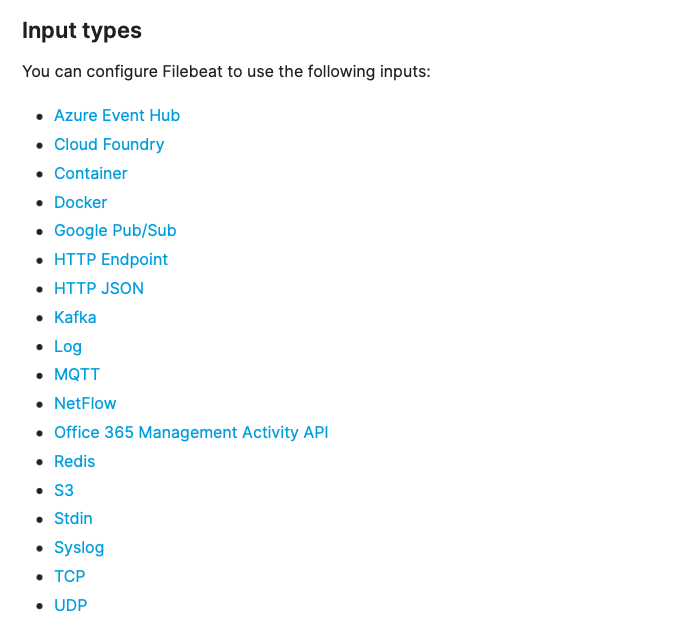
Once the settings are done and it is installed correctly, start it.
# start filebeat
$ systemctl start filebeat
Once filebeat is installed correctly, all that remains is writing the logstash pipeline!
Some steps were repeated during installation. If you install everything on a single server, you can skip some of them, for example adding the PGP key.
The last task, the logstash pipeline, has endless possibilities depending on the incoming source.
input {
  beats {
    port => 5044
    host => "0.0.0.0"
  }
}
filter {
  if [fileset][module] == "nginx" {
    if [fileset][name] == "access" {
      grok {
        match => { "message" => ["%{IPORHOST:[nginx][access][remote_ip]} - %{DATA:[nginx][access][user_name]} \[%{HTTPDATE:[nginx][access][time]}\] \"%{WORD:[nginx][access][method]} %{DATA:[nginx][access][url]} HTTP/%{NUMBER:[nginx][access][http_version]}\" %{NUMBER:[nginx][access][response_code]} %{NUMBER:[nginx][access][body_sent][bytes]} \"%{DATA:[nginx][access][referrer]}\" \"%{DATA:[nginx][access][agent]}\""] }
        remove_field => "message"
      }
      mutate {
        add_field => { "read_timestamp" => "%{@timestamp}" }
      }
      date {
        match => [ "[nginx][access][time]", "dd/MMM/YYYY:H:m:s Z" ]
        remove_field => "[nginx][access][time]"
      }
      useragent {
        source => "[nginx][access][agent]"
        target => "[nginx][access][user_agent]"
        remove_field => "[nginx][access][agent]"
      }
      geoip {
        source => "[nginx][access][remote_ip]"
        target => "[nginx][access][geoip]"
      }
    }
    else if [fileset][name] == "error" {
      grok {
        match => { "message" => ["%{DATA:[nginx][error][time]} \[%{DATA:[nginx][error][level]}\] %{NUMBER:[nginx][error][pid]}#%{NUMBER:[nginx][error][tid]}: (\*%{NUMBER:[nginx][error][connection_id]} )?%{GREEDYDATA:[nginx][error][message]}"] }
        remove_field => "message"
      }
      mutate {
        rename => { "@timestamp" => "read_timestamp" }
      }
      date {
        match => [ "[nginx][error][time]", "YYYY/MM/dd H:m:s" ]
        remove_field => "[nginx][error][time]"
      }
    }
  }
}
output {
  elasticsearch {
    hosts => localhost
    manage_template => false
    index => "%{[@metadata][beat]}-%{[@metadata][version]}-%{+YYYY.MM.dd}"
  }
}
As in the example above, if you used the nginx module, you can branch on the incoming module information.
You can also branch on the fields coming from filebeat, as shown below.
# vim /etc/logstash/conf.d/nginx-pipeline.conf
filter {
...
    if [service] == "nginx"{
        grok {
        }
    }
...
Using grok patterns makes parsing in logstash easy, and the kinds of patterns are as follows.
USERNAME [a-zA-Z0-9._-]+
USER %{USERNAME}
INT (?:[+-]?(?:[0-9]+))
BASE10NUM (?<![0-9.+-])(?>[+-]?(?:(?:[0-9]+(?:\.[0-9]+)?)|(?:\.[0-9]+)))
NUMBER (?:%{BASE10NUM})
BASE16NUM (?<![0-9A-Fa-f])(?:[+-]?(?:0x)?(?:[0-9A-Fa-f]+))
BASE16FLOAT \b(?<![0-9A-Fa-f.])(?:[+-]?(?:0x)?(?:(?:[0-9A-Fa-f]+(?:\.[0-9A-Fa-f]*)?)|(?:\.[0-9A-Fa-f]+)))\b

POSINT \b(?:[1-9][0-9]*)\b
NONNEGINT \b(?:[0-9]+)\b
WORD \b\w+\b
NOTSPACE \S+
SPACE \s*
DATA .*?
GREEDYDATA .*
QUOTEDSTRING (?>(?<!\\)(?>"(?>\\.|[^\\"]+)+"|""|(?>'(?>\\.|[^\\']+)+')|''|(?>`(?>\\.|[^\\`]+)+`)|``))
UUID [A-Fa-f0-9]{8}-(?:[A-Fa-f0-9]{4}-){3}[A-Fa-f0-9]{12}

# Networking
MAC (?:%{CISCOMAC}|%{WINDOWSMAC}|%{COMMONMAC})
CISCOMAC (?:(?:[A-Fa-f0-9]{4}\.){2}[A-Fa-f0-9]{4})
WINDOWSMAC (?:(?:[A-Fa-f0-9]{2}-){5}[A-Fa-f0-9]{2})
COMMONMAC (?:(?:[A-Fa-f0-9]{2}:){5}[A-Fa-f0-9]{2})
IPV6 ((([0-9A-Fa-f]{1,4}:){7}([0-9A-Fa-f]{1,4}|:))|(([0-9A-Fa-f]{1,4}:){6}(:[0-9A-Fa-f]{1,4}|((25[0-5]|2[0-4]\d|1\d\d|[1-9]?\d)(\.(25[0-5]|2[0-4]\d|1\d\d|[1-9]?\d)){3})|:))|(([0-9A-Fa-f]{1,4}:){5}(((:[0-9A-Fa-f]{1,4}){1,2})|:((25[0-5]|2[0-4]\d|1\d\d|[1-9]?\d)(\.(25[0-5]|2[0-4]\d|1\d\d|[1-9]?\d)){3})|:))|(([0-9A-Fa-f]{1,4}:){4}(((:[0-9A-Fa-f]{1,4}){1,3})|((:[0-9A-Fa-f]{1,4})?:((25[0-5]|2[0-4]\d|1\d\d|[1-9]?\d)(\.(25[0-5]|2[0-4]\d|1\d\d|[1-9]?\d)){3}))|:))|(([0-9A-Fa-f]{1,4}:){3}(((:[0-9A-Fa-f]{1,4}){1,4})|((:[0-9A-Fa-f]{1,4}){0,2}:((25[0-5]|2[0-4]\d|1\d\d|[1-9]?\d)(\.(25[0-5]|2[0-4]\d|1\d\d|[1-9]?\d)){3}))|:))|(([0-9A-Fa-f]{1,4}:){2}(((:[0-9A-Fa-f]{1,4}){1,5})|((:[0-9A-Fa-f]{1,4}){0,3}:((25[0-5]|2[0-4]\d|1\d\d|[1-9]?\d)(\.(25[0-5]|2[0-4]\d|1\d\d|[1-9]?\d)){3}))|:))|(([0-9A-Fa-f]{1,4}:){1}(((:[0-9A-Fa-f]{1,4}){1,6})|((:[0-9A-Fa-f]{1,4}){0,4}:((25[0-5]|2[0-4]\d|1\d\d|[1-9]?\d)(\.(25[0-5]|2[0-4]\d|1\d\d|[1-9]?\d)){3}))|:))|(:(((:[0-9A-Fa-f]{1,4}){1,7})|((:[0-9A-Fa-f]{1,4}){0,5}:((25[0-5]|2[0-4]\d|1\d\d|[1-9]?\d)(\.(25[0-5]|2[0-4]\d|1\d\d|[1-9]?\d)){3}))|:)))(%.+)?
IPV4 (?<![0-9])(?:(?:25[0-5]|2[0-4][0-9]|[0-1]?[0-9]{1,2})[.](?:25[0-5]|2[0-4][0-9]|[0-1]?[0-9]{1,2})[.](?:25[0-5]|2[0-4][0-9]|[0-1]?[0-9]{1,2})[.](?:25[0-5]|2[0-4][0-9]|[0-1]?[0-9]{1,2}))(?![0-9])
IP (?:%{IPV6}|%{IPV4})
HOSTNAME \b(?:[0-9A-Za-z][0-9A-Za-z-]{0,62})(?:\.(?:[0-9A-Za-z][0-9A-Za-z-]{0,62}))*(\.?|\b)
HOST %{HOSTNAME}
IPORHOST (?:%{HOSTNAME}|%{IP})
HOSTPORT %{IPORHOST}:%{POSINT}

# paths
PATH (?:%{UNIXPATH}|%{WINPATH})
UNIXPATH (?>/(?>[\w_%!$@:.,-]+|\\.)*)+
TTY (?:/dev/(pts|tty([pq])?)(\w+)?/?(?:[0-9]+))
WINPATH (?>[A-Za-z]+:|\\)(?:\\[^\\?*]*)+
URIPROTO [A-Za-z]+(\+[A-Za-z+]+)?
URIHOST %{IPORHOST}(?::%{POSINT:port})?
# uripath comes loosely from RFC1738, but mostly from what Firefox
# doesn't turn into %XX
URIPATH (?:/[A-Za-z0-9$.+!*'(){},~:;=@#%_\-]*)+
#URIPARAM \?(?:[A-Za-z0-9]+(?:=(?:[^&]*))?(?:&(?:[A-Za-z0-9]+(?:=(?:[^&]*))?)?)*)?
URIPARAM \?[A-Za-z0-9$.+!*'|(){},~@#%&/=:;_?\-\[\]]*
URIPATHPARAM %{URIPATH}(?:%{URIPARAM})?
URI %{URIPROTO}://(?:%{USER}(?::[^@]*)?@)?(?:%{URIHOST})?(?:%{URIPATHPARAM})?

# Months: January, Feb, 3, 03, 12, December
MONTH \b(?:Jan(?:uary)?|Feb(?:ruary)?|Mar(?:ch)?|Apr(?:il)?|May|Jun(?:e)?|Jul(?:y)?|Aug(?:ust)?|Sep(?:tember)?|Oct(?:ober)?|Nov(?:ember)?|Dec(?:ember)?)\b
MONTHNUM (?:0?[1-9]|1[0-2])
MONTHNUM2 (?:0[1-9]|1[0-2])
MONTHDAY (?:(?:0[1-9])|(?:[12][0-9])|(?:3[01])|[1-9])

# Days: Monday, Tue, Thu, etc...
DAY (?:Mon(?:day)?|Tue(?:sday)?|Wed(?:nesday)?|Thu(?:rsday)?|Fri(?:day)?|Sat(?:urday)?|Sun(?:day)?)

# Years?
YEAR (?>\d\d){1,2}
HOUR (?:2[0123]|[01]?[0-9])
MINUTE (?:[0-5][0-9])
# '60' is a leap second in most time standards and thus is valid.
SECOND (?:(?:[0-5]?[0-9]|60)(?:[:.,][0-9]+)?)
TIME (?!<[0-9])%{HOUR}:%{MINUTE}(?::%{SECOND})(?![0-9])
# datestamp is YYYY/MM/DD-HH:MM:SS.UUUU (or something like it)
DATE_US %{MONTHNUM}[/-]%{MONTHDAY}[/-]%{YEAR}
DATE_EU %{MONTHDAY}[./-]%{MONTHNUM}[./-]%{YEAR}
ISO8601_TIMEZONE (?:Z|[+-]%{HOUR}(?::?%{MINUTE}))
ISO8601_SECOND (?:%{SECOND}|60)
TIMESTAMP_ISO8601 %{YEAR}-%{MONTHNUM}-%{MONTHDAY}[T ]%{HOUR}:?%{MINUTE}(?::?%{SECOND})?%{ISO8601_TIMEZONE}?
DATE %{DATE_US}|%{DATE_EU}
DATESTAMP %{DATE}[- ]%{TIME}
TZ (?:[PMCE][SD]T|UTC)
DATESTAMP_RFC822 %{DAY} %{MONTH} %{MONTHDAY} %{YEAR} %{TIME} %{TZ}
DATESTAMP_RFC2822 %{DAY}, %{MONTHDAY} %{MONTH} %{YEAR} %{TIME} %{ISO8601_TIMEZONE}
DATESTAMP_OTHER %{DAY} %{MONTH} %{MONTHDAY} %{TIME} %{TZ} %{YEAR}
DATESTAMP_EVENTLOG %{YEAR}%{MONTHNUM2}%{MONTHDAY}%{HOUR}%{MINUTE}%{SECOND}

# Syslog Dates: Month Day HH:MM:SS
SYSLOGTIMESTAMP %{MONTH} +%{MONTHDAY} %{TIME}
PROG (?:[\w._/%-]+)
SYSLOGPROG %{PROG:program}(?:\[%{POSINT:pid}\])?
SYSLOGHOST %{IPORHOST}
SYSLOGFACILITY <%{NONNEGINT:facility}.%{NONNEGINT:priority}>
HTTPDATE %{MONTHDAY}/%{MONTH}/%{YEAR}:%{TIME} %{INT}

# Shortcuts
QS %{QUOTEDSTRING}

# Log formats
SYSLOGBASE %{SYSLOGTIMESTAMP:timestamp} (?:%{SYSLOGFACILITY} )?%{SYSLOGHOST:logsource} %{SYSLOGPROG}:
COMMONAPACHELOG %{IPORHOST:clientip} %{USER:ident} %{USER:auth} \[%{HTTPDATE:timestamp}\] "(?:%{WORD:verb} %{NOTSPACE:request}(?: HTTP/%{NUMBER:httpversion})?|%{DATA:rawrequest})" %{NUMBER:response} (?:%{NUMBER:bytes}|-)
COMBINEDAPACHELOG %{COMMONAPACHELOG} %{QS:referrer} %{QS:agent}

# Log Levels
LOGLEVEL ([A|a]lert|ALERT|[T|t]race|TRACE|[D|d]ebug|DEBUG|[N|n]otice|NOTICE|[I|i]nfo|INFO|[W|w]arn?(?:ing)?|WARN?(?:ING)?|[E|e]rr?(?:or)?|ERR?(?:OR)?|[C|c]rit?(?:ical)?|CRIT?(?:ICAL)?|[F|f]atal|FATAL|[S|s]evere|SEVERE|EMERG(?:ENCY)?|[Ee]merg(?:ency)?)
For the logs parsed by the pipeline to be loaded into elasticsearch, you must also provide the ID and password created earlier.
Add the user and password fields to the elasticsearch output.
output {
  elasticsearch {
    hosts => "elasticsearch:9200"
    user => "user"
    password => "pass"
    action => "index"
    manage_template => false
    index => "%{[@metadata][target_index]}"
  }
}
Finally, once all the settings are done, you can check in kibana that the logs are being loaded well.
If you filter the file patterns loaded into elasticsearch in kibana, you can see them as shown below.
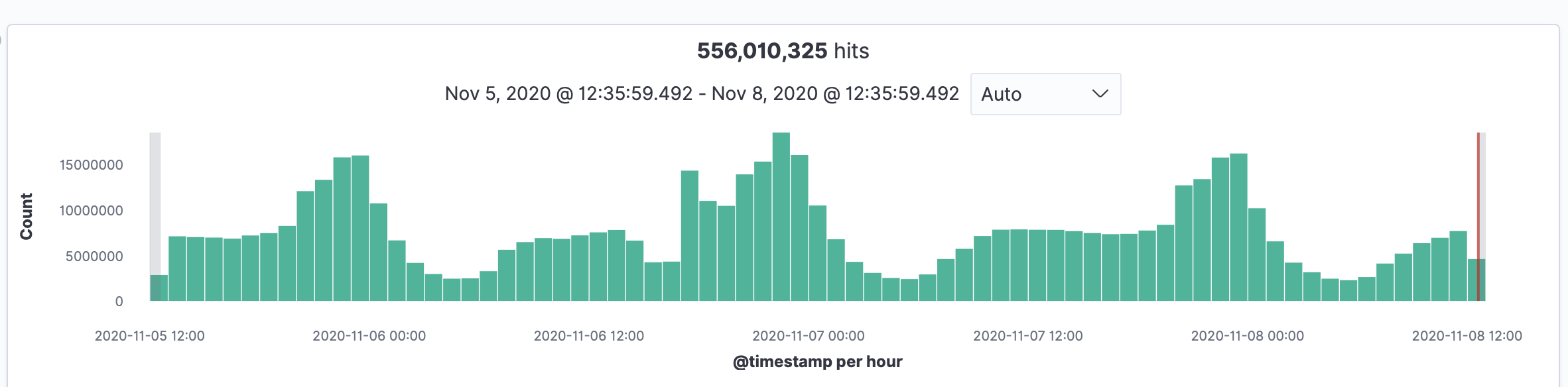
You can see that about 550 million nginx log entries piled up over about 3 days.
Now I can load not only nginx logs but also various other kinds of logs, and analyze them with kibana visualize.
I referred to several references while building this and enjoyed the work.